WattWächter Plus
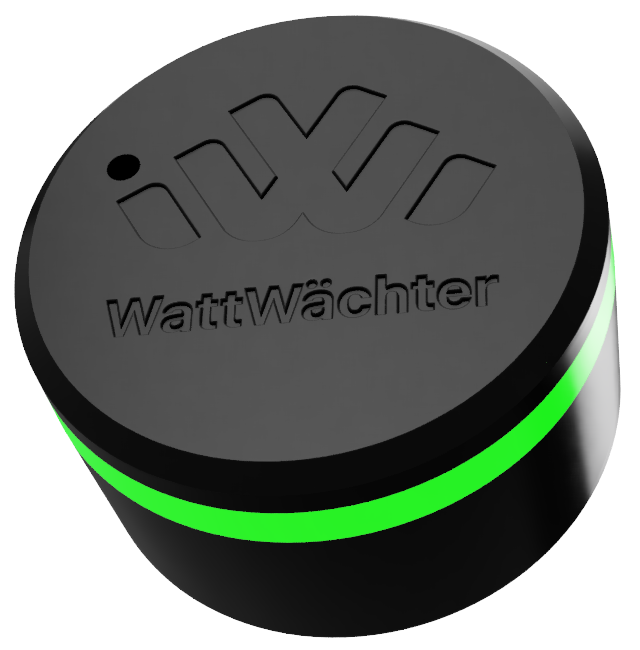
The WattWächter Plus reads energy data from your smart meter via an IR reading head and makes it available locally and through the cloud.
Features
-
Real-Time Monitoring
Current power (W) and meter readings (kWh) directly from your smart meter
-
WiFi & Bluetooth 5.0
Wireless connection to your home network and easy setup via app
-
REST API
Full access to all data via local endpoints
-
Cloud Portal
Remote access via the Cloud Portal
-
MQTT
Integration with Home Assistant, ioBroker, and other smart home systems
-
OTA Updates
Automatic firmware updates via the cloud
How It Works
flowchart LR
    SM["Smart Meter"] -- IR --> WW["⚡ WattWächter"]
    WW -- WiFi --> API["🌐 REST API"]
    WW -- WiFi --> MQTT["<span style='display:inline-flex;align-items:center;gap:4px;white-space:nowrap'><img src='/assets/images/mqtt-logo.svg?v=2' style='width:14px;height:14px'/>MQTT</span>"]
WW -- WiFi --> Cloud["☁️ Cloud Portal"]- The WattWächter receives SML telegrams from the smart meter
- The WattWächter parses OBIS codes (e.g.,
1-0:1.8.0for total consumption) - Data is stored internally (15-min resolution: 30 days, daily values: 2 years)
- Served via REST API, MQTT, and/or cloud portal
Specifications
| Property | Value |
|---|---|
| Connectivity | WiFi 802.11 b/g/n, Bluetooth 5.0 LE |
| Interface | IR reading head (SML/OBIS protocol, D0 interface) |
| Power supply | USB-C, 5V (min. 500mA) |
| Storage | 15-min resolution (30 days) + daily values (2 years) |
| Status indicator | RGB LED (meaning) |
| Hostname | wattwaechter-XXXXXXXXXXXX.local (mDNS) |
Data Collection
OBIS Codes
The following OBIS codes are provided by nearly all modern meters after unlocking:
| OBIS Code | Description | Unit |
|---|---|---|
1-0:1.8.0 |
Total consumption (import) | kWh |
1-0:2.8.0 |
Total feed-in (export) | kWh |
1-0:16.7.0 |
Current power | W |
→ Tariffs, voltage, current, power, phase angles and device information: Additional OBIS codes.
Authentication
The API is accessible without authentication by default. For shared networks, we recommend enabling token-based authentication.
| Token | Permission |
|---|---|
| READ Token | Fetch data, check status |
| WRITE Token | Change settings, start OTA, reboot |
→ Enable and manage tokens: Settings → API security. HTTP details and token rotation: REST API.
MQTT Integration
The WattWächter can send telemetry data via MQTT to a broker — ideal for Home Assistant, ioBroker, and other smart home systems. Topic structure, payload format and Home Assistant auto-discovery are documented under Interfaces → MQTT.
→ Configure broker, port, publish interval and CA certificate: Settings → MQTT.
Home Assistant
A dedicated Home Assistant integration with auto-discovery is available — see Integrations → Home Assistant.
Troubleshooting
Device not reachable
- Check LED status
- Test ping:
ping wattwaechter-XXXXXXXXXXXX.local - Find IP address
- If LED is solid red: restart device (disconnect/reconnect USB)
No meter data
- Is the IR reading head correctly placed on the optical interface?
- Smart meter unlocked? → Meter Preparation
- Check values:
curl http://wattwaechter-XXXXXXXXXXXX.local/api/v1/history/latest
Factory Reset
Hold the function button for 7 seconds. All data will be deleted.