Home Assistant
The WattWächter Plus integration for Home Assistant enables seamless integration of your WattWächter Plus into your smart home. All sensor data is automatically detected and provided as entities in Home Assistant.
Now an official part of Home Assistant
As of Home Assistant 2026.7, the WattWächter Plus integration is a built-in part of Home Assistant Core. Installation via HACS is no longer required — the integration is already included and is discovered automatically on your network.
Two ways to Home Assistant
There are two ways to integrate the WattWächter into Home Assistant:
- Native integration (this page) — local meter readings as sensor entities, no cloud. Included in Home Assistant Core as of Home Assistant 2026.7.
- MQTT with auto-discovery — see Interfaces → MQTT. Only as a sensor source.
Use only one of the two at a time, otherwise duplicate entities can appear.
Prerequisites
- WattWächter Plus set up and connected to WiFi — if not yet done, follow the Getting Started guide first
- Home Assistant 2026.7 or newer (the integration was accepted into Home Assistant Core in this release)
- WattWächter Plus on the same network as Home Assistant
Installation
As of Home Assistant 2026.7, the integration is already included in Home Assistant — there is nothing to install. Continue directly with Setting Up the Integration.
Older Home Assistant versions
If you are running a version before 2026.7, update Home Assistant first. The former installation via HACS is no longer supported and no longer described here.
Setting Up the Integration
Automatic Discovery (Zeroconf)
Home Assistant automatically detects all WattWächter Plus devices on the network. You can find discovered devices under Settings > Devices & Services in the Discovered section. Click Add to set up a device.
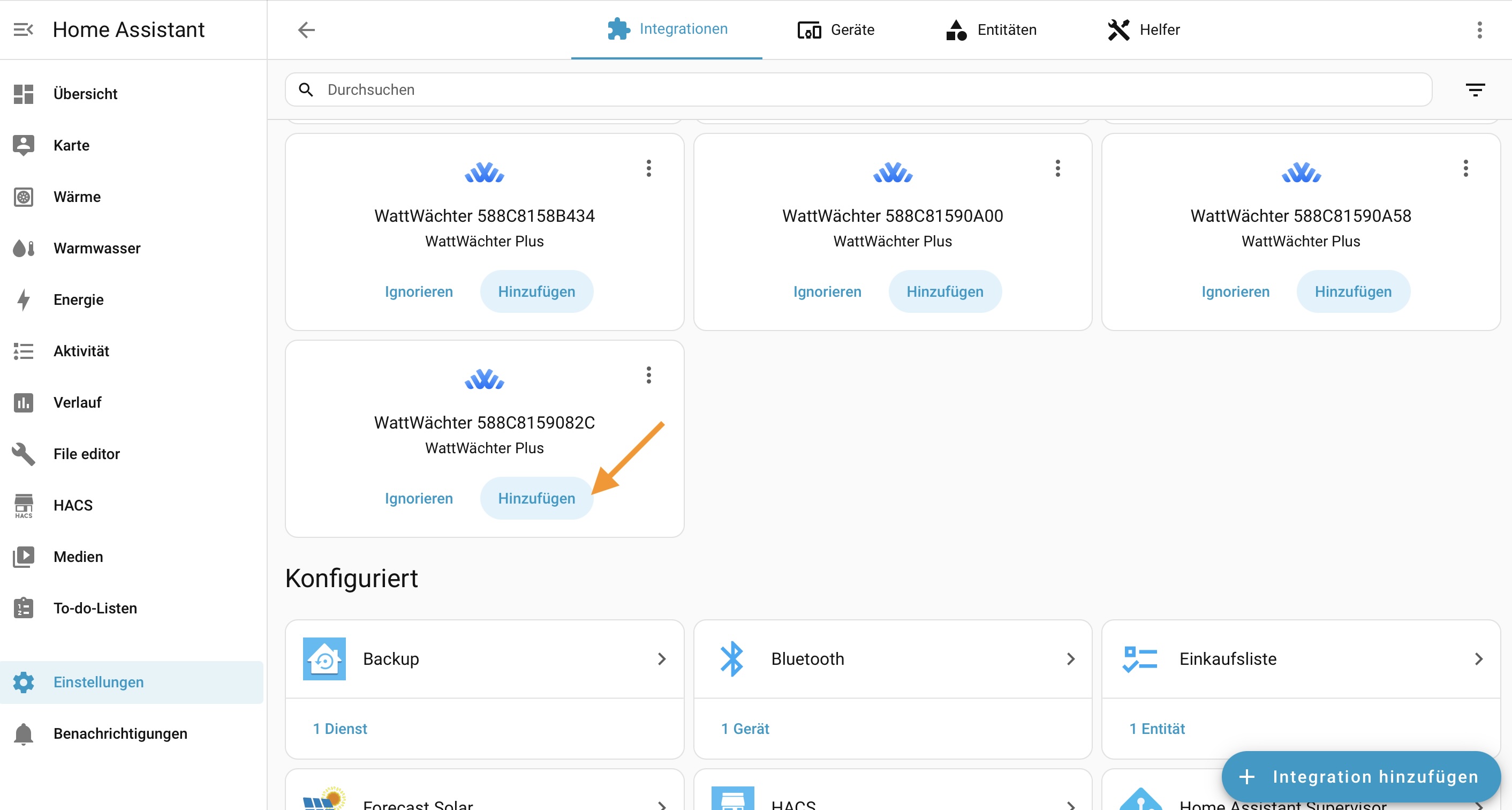
Add Manually
If the device is not discovered automatically (e.g. because mDNS/Zeroconf is blocked on your network), you can add it manually: Settings > Devices & Services > Add Integration > WattWächter Plus. Then enter the hostname or IP address of the device.
Configure Device
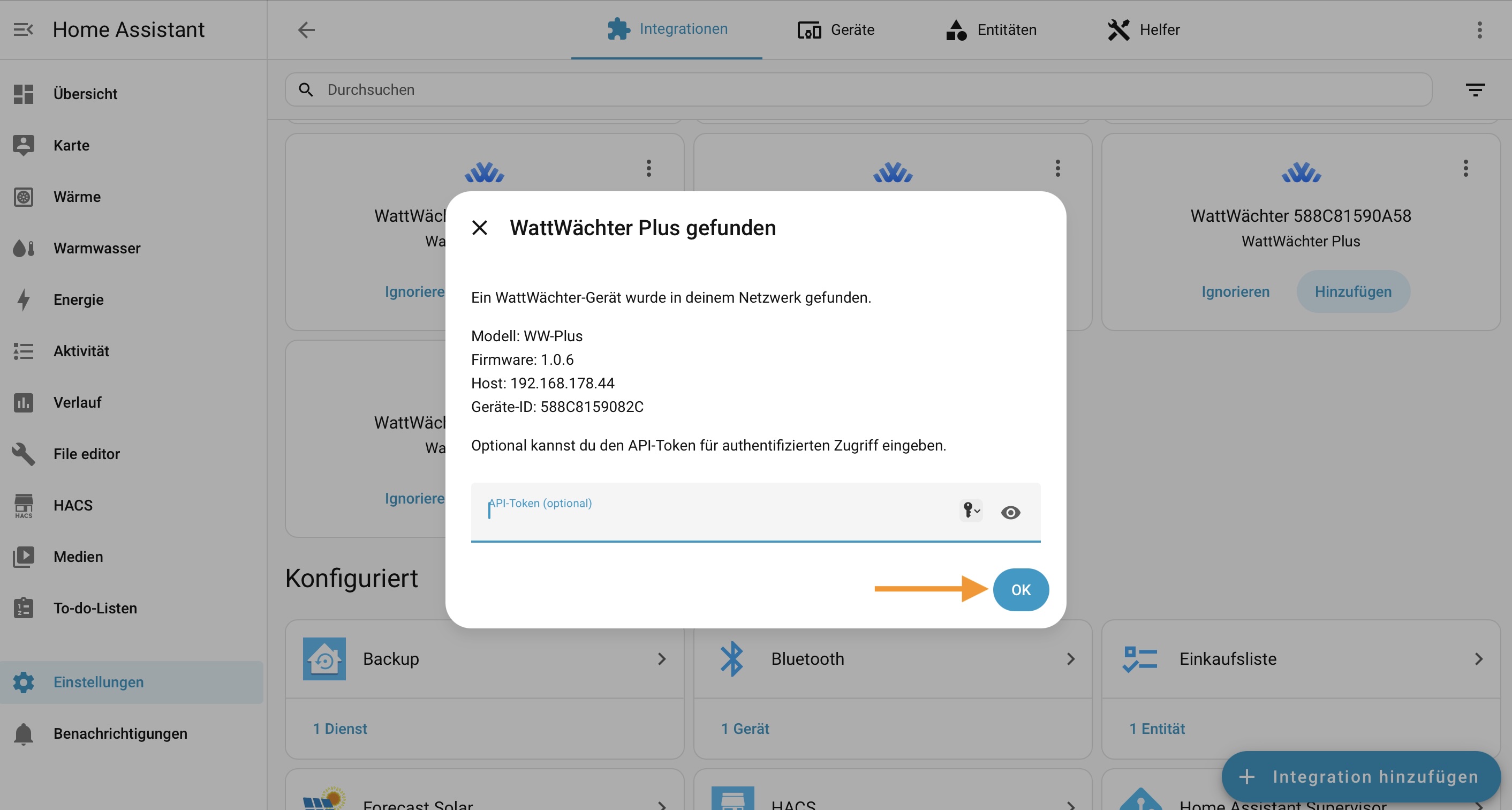
The configuration dialog displays the device information:
- Model: WW-Plus
- Firmware: current version
- Host: IP address of the device
- Device ID: unique identifier
Optionally, you can enter an API token to enable authenticated access. Click OK to complete the setup.
Name Your Device
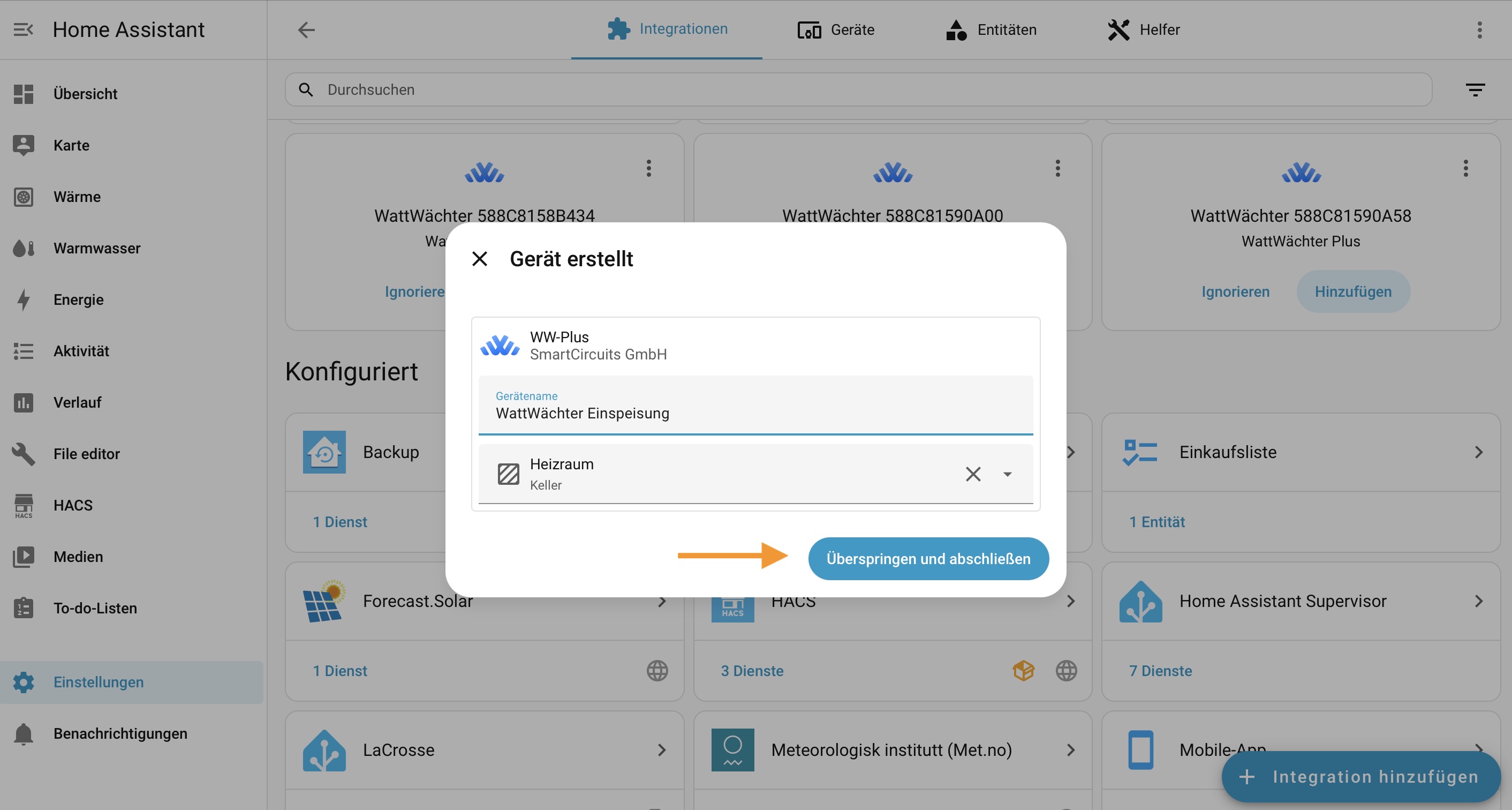
After configuration, you can assign a name and area to the device (e.g., "WattWächter Feed-in" in the area "Basement"). Click Skip and finish if you want to set this up later.
Available Sensors
The integration automatically creates sensors based on the OBIS codes provided by your electricity meter. Which sensors are available depends on your meter.
Energy Sensors
| Sensor | OBIS Code | Unit | Description |
|---|---|---|---|
| Total Consumption | 1.8.0 | kWh | Total energy import |
| Total Feed-in | 2.8.0 | kWh | Total energy export |
| Consumption Tariff 1 | 1.8.1 | kWh | Energy import tariff 1 (peak) |
| Consumption Tariff 2 | 1.8.2 | kWh | Energy import tariff 2 (off-peak) |
| Feed-in Tariff 1 | 2.8.1 | kWh | Energy export tariff 1 |
| Feed-in Tariff 2 | 2.8.2 | kWh | Energy export tariff 2 |
Power Sensors
| Sensor | OBIS Code | Unit | Description |
|---|---|---|---|
| Active Power | 16.7.0 | W | Current total power |
| Power L1 | 36.7.0 | W | Power phase 1 |
| Power L2 | 56.7.0 | W | Power phase 2 |
| Power L3 | 76.7.0 | W | Power phase 3 |
Voltage & Current Sensors
| Sensor | OBIS Code | Unit | Description |
|---|---|---|---|
| Voltage L1/L2/L3 | 32/52/72.7.0 | V | Voltage per phase |
| Current L1/L2/L3 | 31/51/71.7.0 | A | Current per phase |
| Frequency | 14.7.0 | Hz | Grid frequency |
| Power Factor | 13.7.0 | — | Total and per phase |
Known OBIS codes only
The integration creates sensors only for the known OBIS codes listed above. If your electricity meter provides additional codes, they are currently not created automatically as sensors in the Home Assistant Core version.
Which sensors appear depends on your meter
Not every electricity meter provides all OBIS codes. Many meters must also first be unlocked with a PIN from your grid operator before they expose detailed meter data.
Scan Interval
The integration fetches meter data locally every 120 seconds. In the Home Assistant Core version this interval is fixed by Home Assistant and cannot be changed via the interface.
Need faster updates? Use MQTT instead
If you need meter values in Home Assistant more often than every 120 seconds (e.g. for live displays), connect the WattWächter via MQTT with auto-discovery instead. There you set the publish interval yourself — down to 1 second.
Important: use MQTT only in that case and do not set up the native integration as well — otherwise every meter value shows up twice (see MQTT Conflict). Setup: Interfaces → MQTT.
Firmware Updates
The Home Assistant Core integration does not provide an update entity — firmware updates cannot be started from within Home Assistant. Update the firmware directly via the device web interface or an OTA update instead.
Troubleshooting
Device not automatically discovered
Make sure that:
- The WattWächter Plus is powered on and connected to WiFi
- Home Assistant and the WattWächter are on the same network/subnet
- mDNS/Zeroconf is not blocked in your network (e.g., by VLAN isolation or firewall)
- The device is not connected to a guest WiFi network — guest networks typically prevent communication between devices (client isolation)
You can also add the device manually: Settings > Devices & Services > Add Integration > WattWächter and enter the IP address.
MQTT Conflict
If MQTT auto-discovery is active on the WattWächter and the local API integration is set up as well, the meter values show up twice in Home Assistant — there is no automatic warning about this. Either disable MQTT auto-discovery on the device or use the MQTT integration instead of the local API integration.
Authentication Error
If the API token has changed, you can update it via Settings > Devices & Services > WattWächter Plus > Re-authenticate.