WattWächter Plus
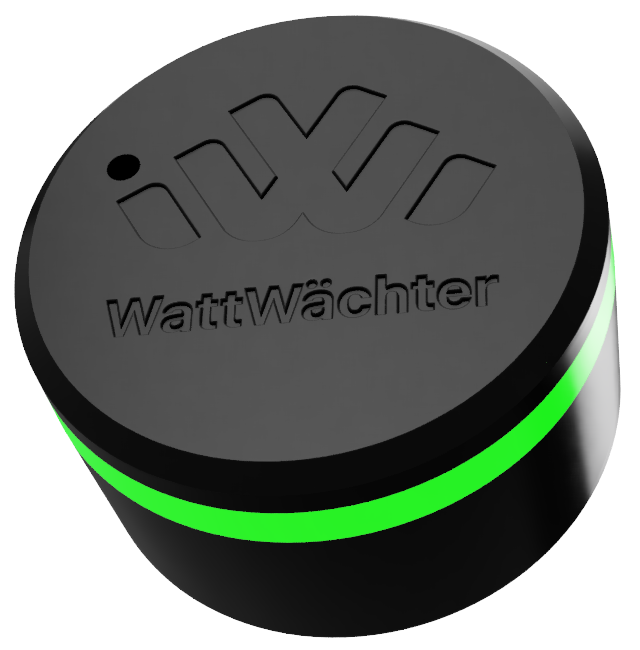
The WattWächter Plus reads energy data from your smart meter via an IR reading head and makes it available locally and through the cloud.
Features
-
Real-Time Monitoring
Current power (W) and meter readings (kWh) directly from your smart meter
-
WiFi & Bluetooth 5.0
Wireless connection to your home network and easy setup via app
-
REST API
Full access to all data via local endpoints
-
Cloud Portal
Remote access via the Cloud Portal
-
MQTT
Integration with Home Assistant, ioBroker, and other smart home systems
-
OTA Updates
Automatic firmware updates via the cloud
How It Works
flowchart LR
    SM["🔌 Smart Meter"] -- IR --> WW["⚡ WattWächter"]
    WW -- WiFi --> API["🌐 REST API"]
    WW -- WiFi --> MQTT["📡 MQTT"]
WW -- WiFi --> Cloud["☁️ Cloud Portal"]- The IR reading head receives SML telegrams from the smart meter
- The WattWächter parses OBIS codes (e.g.,
1-0:1.8.0for total consumption) - Data is stored internally (15-min resolution: 30 days, daily values: 2 years)
- Served via REST API, MQTT, and/or cloud portal
Specifications
| Property | Value |
|---|---|
| Connectivity | WiFi 802.11 b/g/n, Bluetooth 5.0 LE |
| Interface | IR reading head (SML/OBIS protocol, D0 interface) |
| Power supply | USB-C, 5V (min. 500mA) |
| Storage | 15-min resolution (30 days) + daily values (2 years) |
| Status indicator | RGB LED (meaning) |
| Hostname | wattwaechter-XXXXXXXXXXXX.local (mDNS) |
Data Collection
OBIS Codes
The following OBIS codes are provided by nearly all modern meters after unlocking:
| OBIS Code | Description | Unit |
|---|---|---|
1-0:1.8.0 |
Total consumption (import) | kWh |
1-0:2.8.0 |
Total feed-in (export) | kWh |
1-0:16.7.0 |
Current power | W |
Additional OBIS codes
Which additional OBIS codes your meter provides depends on the manufacturer's or network operator's configuration and cannot be changed — even if the meter's display shows more values. The WattWächter delivers all values it receives from the meter. You can check which ones are available in the web UI under Live Dashboard → All meter values or via the API at /api/v1/history/latest.
Tariffs
| OBIS Code | Description | Unit |
|---|---|---|
1-0:1.8.1 |
Consumption tariff 1 | kWh |
1-0:1.8.2 |
Consumption tariff 2 | kWh |
1-0:1.8.3 |
Consumption tariff 3 | kWh |
1-0:1.8.4 |
Consumption tariff 4 | kWh |
1-0:2.8.1 |
Feed-in tariff 1 | kWh |
1-0:2.8.2 |
Feed-in tariff 2 | kWh |
1-0:2.8.3 |
Feed-in tariff 3 | kWh |
1-0:2.8.4 |
Feed-in tariff 4 | kWh |
Voltage, Current & Power
| OBIS Code | Description | Unit |
|---|---|---|
1-0:14.7.0 |
Frequency | Hz |
1-0:32.7.0 |
Voltage L1 | V |
1-0:52.7.0 |
Voltage L2 | V |
1-0:72.7.0 |
Voltage L3 | V |
1-0:31.7.0 |
Current L1 | A |
1-0:51.7.0 |
Current L2 | A |
1-0:71.7.0 |
Current L3 | A |
1-0:21.7.0 |
Power L1 | W |
1-0:41.7.0 |
Power L2 | W |
1-0:61.7.0 |
Power L3 | W |
Phase angles
| OBIS Code | Description |
|---|---|
1-0:81.7.1 |
Phase angle U L2/L1 |
1-0:81.7.2 |
Phase angle U L3/L1 |
1-0:81.7.4 |
Phase angle I/U L1 |
1-0:81.7.15 |
Phase angle I/U L2 |
1-0:81.7.26 |
Phase angle I/U L3 |
Device information
| OBIS Code | Description |
|---|---|
1-0:0.2.0 |
Firmware version |
1-0:0.9.1 |
Time |
1-0:96.50.1 |
Manufacturer code |
1-0:96.1.0 |
Meter number |
Authentication
The API is accessible without authentication by default. For shared networks, we recommend enabling token-based authentication.
| Token | Permission |
|---|---|
| READ Token | Fetch data, check status |
| WRITE Token | Change settings, start OTA, reboot |
Enable authentication
curl -X POST http://wattwaechter-XXXXXXXXXXXX.local/api/v1/settings \
  -H "Content-Type: application/json" \
  -d '{"api_auth_required": true}'
Tokens are passed via header:
Authorization: Bearer YOUR_TOKEN
MQTT Integration
The WattWächter can send telemetry data via MQTT to a broker — ideal for Home Assistant, ioBroker, and other smart home systems.
Configure MQTT
curl -X POST http://wattwaechter-XXXXXXXXXXXX.local/api/v1/settings \
  -H "Authorization: Bearer WRITE_TOKEN" \
  -H "Content-Type: application/json" \
  -d '{"mqtt": {"enable": true, "host": "mqtt.example.com", "port": 8883}}'
TLS with custom CA certificate
For MQTT brokers with a self-signed certificate:
curl -X POST http://wattwaechter-XXXXXXXXXXXX.local/api/v1/mqtt/ca \
  -H "Authorization: Bearer WRITE_TOKEN" \
  -H "Content-Type: text/plain" \
  --data-binary @my_broker_ca.pem
Troubleshooting
Device not reachable
- Check LED status
- Test ping:
ping wattwaechter-XXXXXXXXXXXX.local - Find IP address
- If LED is solid red: restart device (disconnect/reconnect USB)
No meter data
- Is the IR reading head correctly placed on the optical interface?
- Smart meter unlocked? → Meter Preparation
- Check values:
curl http://wattwaechter-XXXXXXXXXXXX.local/api/v1/history/latest
Factory Reset
Hold the function button for 7 seconds. All data will be deleted.