Frequently Asked Questions (FAQ)
Device not found via Bluetooth
It can happen that the WattWächter is not found during the Bluetooth search.
Solution:
- Disable Bluetooth in your phone's device settings
- Re-enable Bluetooth
- Restart the search in the WattWächter app
More tips
- Make sure the WattWächter is in BLE mode (LED pulses blue). If not, briefly press the function button.
- Keep your phone close to the WattWächter (max. 2–3 meters).
- Make sure the app has permission to use Bluetooth.
Performing a factory reset
To reset the WattWächter to factory settings:
- Press and hold the function button for 7 seconds
- The function button is located to the left above the WattWächter logo
- Press it with a thin object, e.g. a toothpick or an unfolded paper clip
- After about 2 seconds, the LED turns solid red
- The reset is complete once the red LED turns off (after about 7 seconds)
Warning
A factory reset deletes all data — including WiFi credentials, cloud pairing, measurement data, and log data. For more details, see Function Button → Factory Reset.
How do I find my WattWächter's IP address / mDNS name?
To access the local web interface or API, you need your WattWächter's network address. There are three ways to find it:
1. In the app
Open the WattWächter app and tap on the gear icon next to the device name.

Tap on "WiFi" in the "Actions" section.
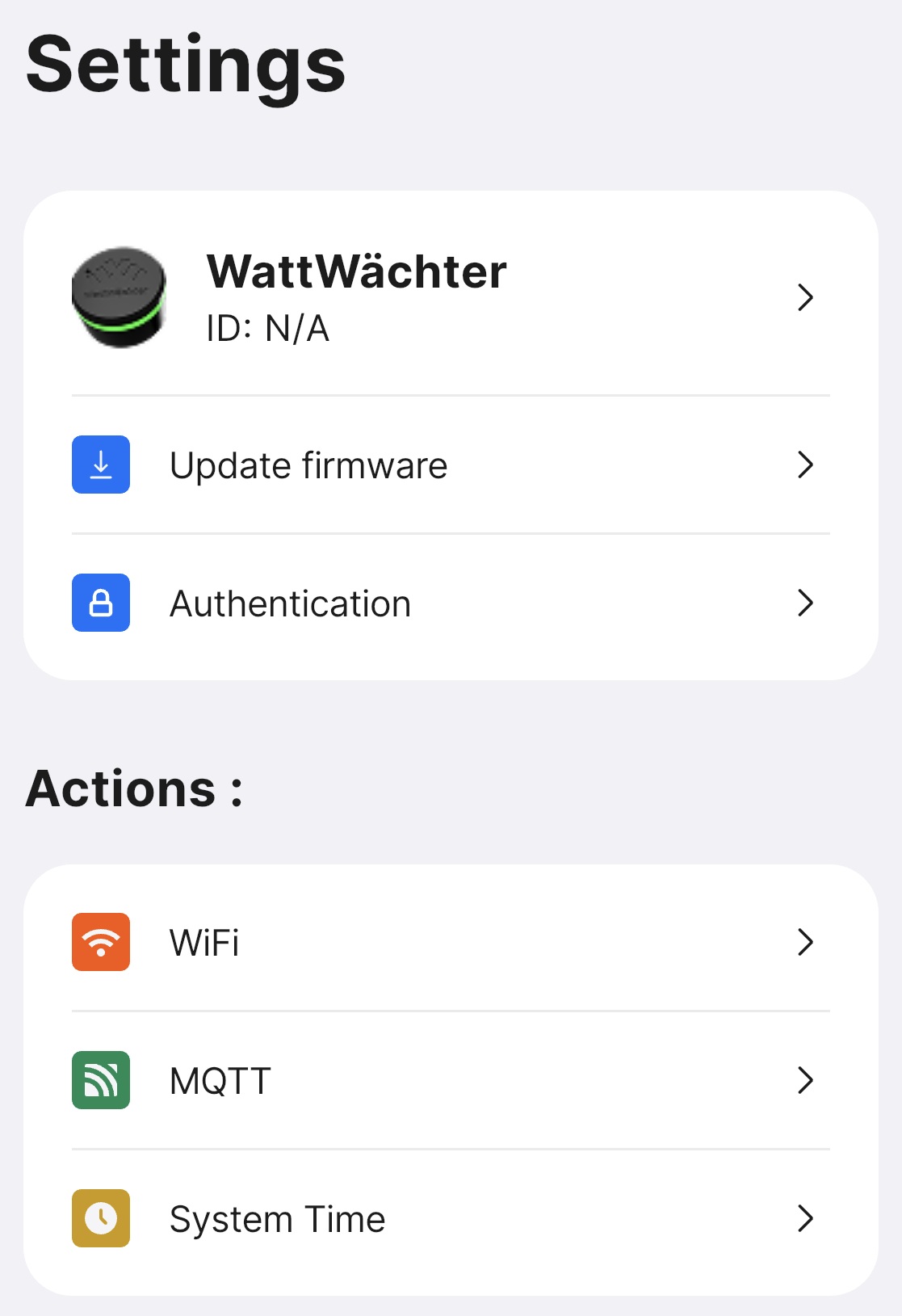
There you'll find the IP address and mDNS name.
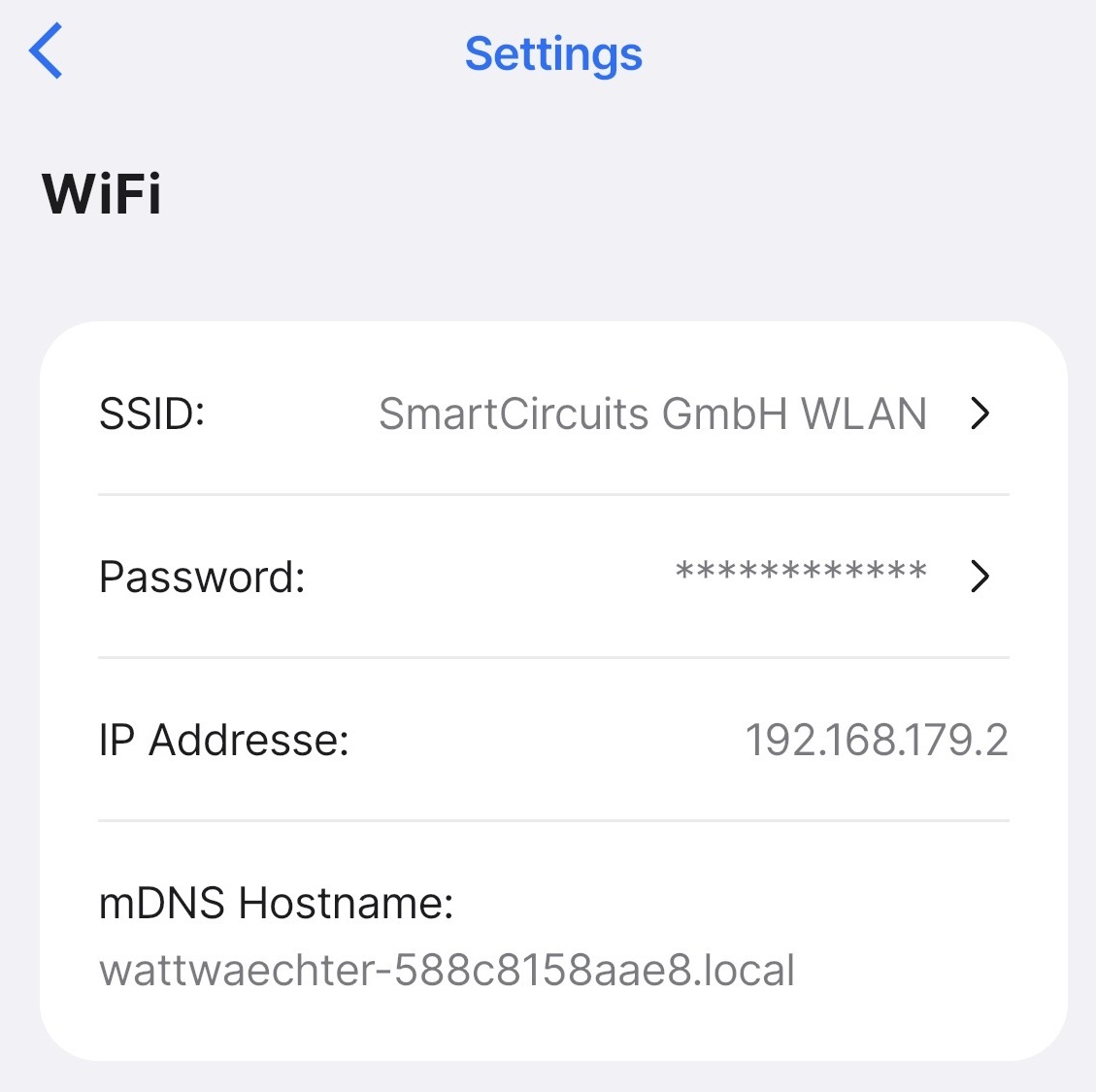
2. After AP setup
If you set up the WattWächter via the Access Point, the IP address and mDNS name are displayed at the end of the setup process.
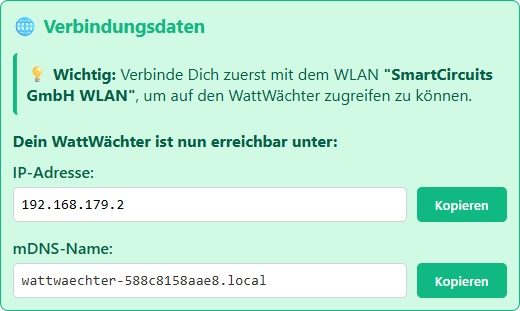
3. In your router
In your router's device list (e.g., Fritz!Box, Speedport), you'll find the WattWächter listed as wattwaechter-XXXXXXXXXXXX. The assigned IP address is also shown there.
mDNS name
The mDNS name has the format wattwaechter-XXXXXXXXXXXX.local (where XXXXXXXXXXXX is the device's MAC address). This allows you to reach the device in your browser without knowing the IP address — e.g., http://wattwaechter-3432df43d331.local.
Connecting an additional phone
You want to pair an additional smartphone with the WattWächter:
- Briefly press the function button to put the WattWächter into pairing mode (LED pulses blue)
- Open the WattWächter app on the new phone
- Follow the steps as in the initial setup — the "Set up WiFi" step is skipped, as the WattWächter is already connected to the network
WattWächter Self-Test
Tests the infrared transmit and receive electronics of the WattWächter. Hold the device about 3 cm above a mirror or a white sheet of paper and click "Start Test". The test sends a bit pattern via IR and checks whether it is correctly reflected back. After up to 5 attempts, the result is displayed.
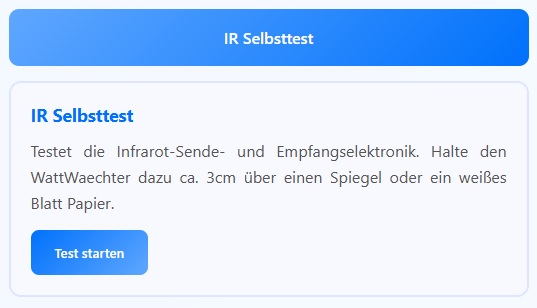
You can find the IR self-test in the web interface under "Services & Integration".