Function Button
The WattWächter has a function button that can be used to trigger various actions. The button can be pressed with a thin object such as a SIM ejector tool, a toothpick, or an unfolded paper clip.
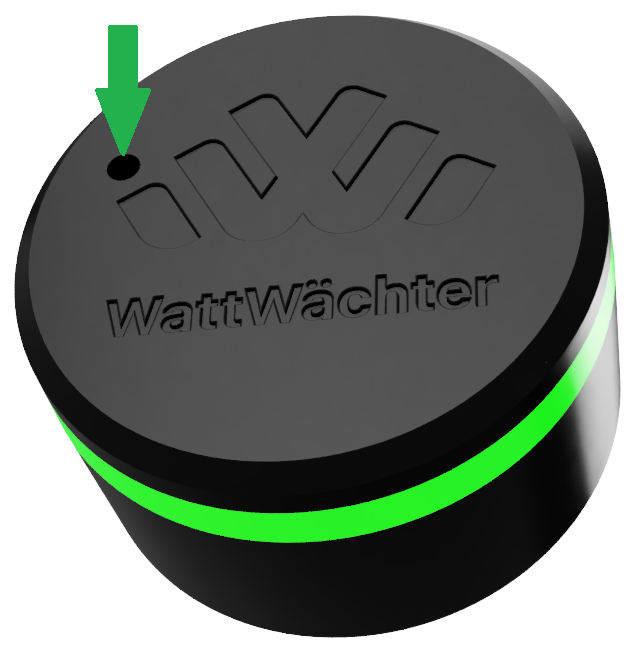
Functions
Activate BLE Mode (short press)
A short press on the button activates Bluetooth mode (BLE). The LED starts pulsing blue, indicating that the device is ready to be paired via the app.
This is useful when:
- You want to connect another smartphone to the WattWächter
- You need to repeat the initial setup
- You want to change WiFi settings via the app
BLE mode remains active for a few minutes and then deactivates automatically.
Save Data (short press)
A short press also saves the current measurement data from the RAM buffer permanently to internal storage.
Before Disconnecting Power
The WattWächter buffers measurement data in RAM and periodically writes it to storage. If you disconnect the device from power without pressing the button first, you may lose up to 6 hours of measurement data in the worst case.
Recommendation: Press the function button briefly before unplugging and wait until the LED flashes briefly.
Factory Reset (long press > 7 seconds)
A long press (hold for at least 7 seconds) resets the device to factory settings.
Warning: All data will be deleted
A factory reset deletes all data:
- WiFi credentials
- API tokens
- Cloud pairing
- MQTT configuration
- All measurement data (history)
- Internal log data
After the reset, the device restarts and enters setup mode (LED pulses blue). You can then configure it again as during initial setup.
Procedure:
- Press and hold the button
- After about 2 seconds, the LED turns solid red
- After about 7 seconds, the LED turns off — the reset is complete
- Release the button
- The device restarts in setup mode
Overview
| Action | Duration | Function |
|---|---|---|
| Short press | < 1 second | Activate BLE + save data |
| Long press | > 7 seconds | Factory reset |